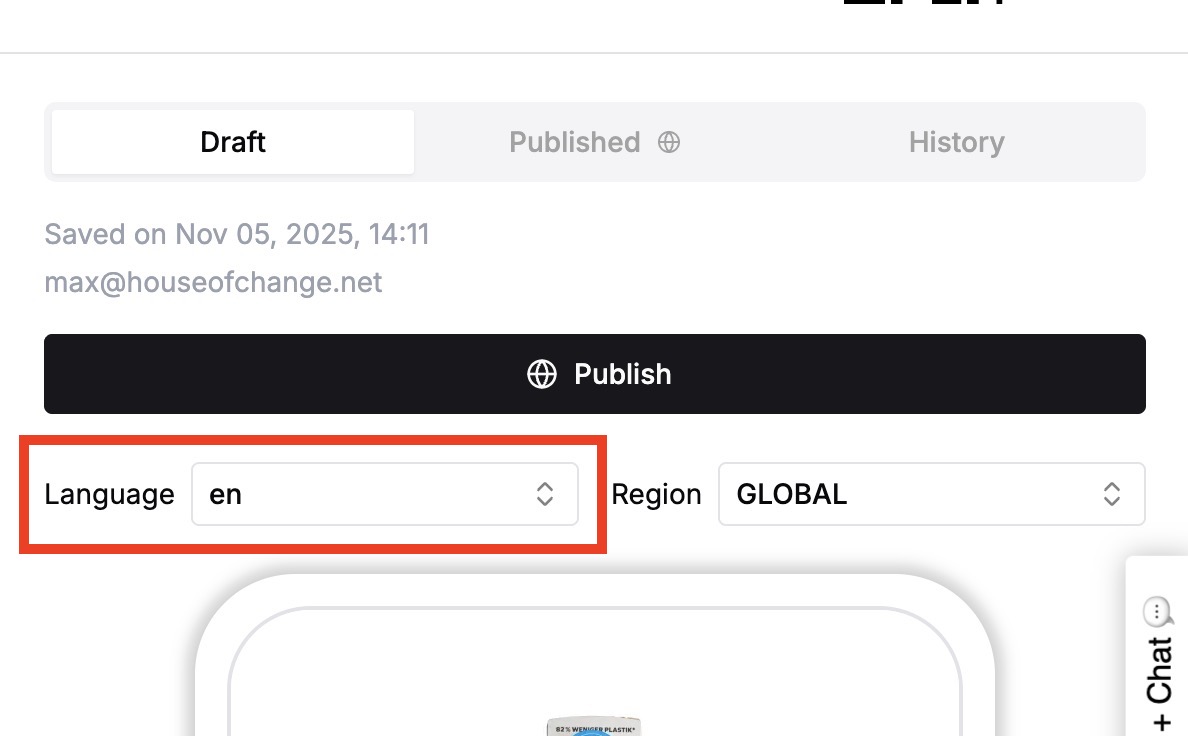
Before you start working with languages:
If applicable:
Contact us to unlock additional languages in your account (the default is 1 language only)
⚠ Tell us your default language!
The default language is the language upon which all translations are based
This language is usually the primary language on your packaging
Language translations affect most but not all fields below the language tab
For example, icons and images are not “translated”
There are two options for translating languages:
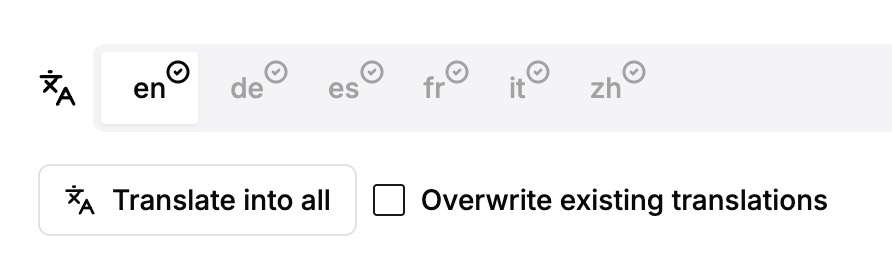
Finalise content in your default language
→ this is the language displayed on the very left of the tab; in the example above this is English
Press “Translate into all”
This translates and fills any fields that are still empty in the target languages
⚠ Caution: If you want to overwrite both empty and filled fields, check “Overwrite existing translations”.
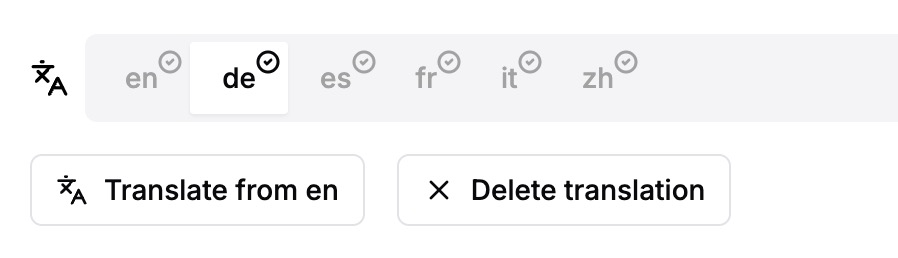
Navigate to the target language by selecting the appropriate tab in the tab bar
→ in the example above this is German
Press “Translate from [default language]”
⚠ Caution: This overwrites all fields in the target language
You can also delete a target language by pressing “Delete translation”. This clears all fields of the target language and means the Module is unavailable in that language.
You can translate content in two ways:
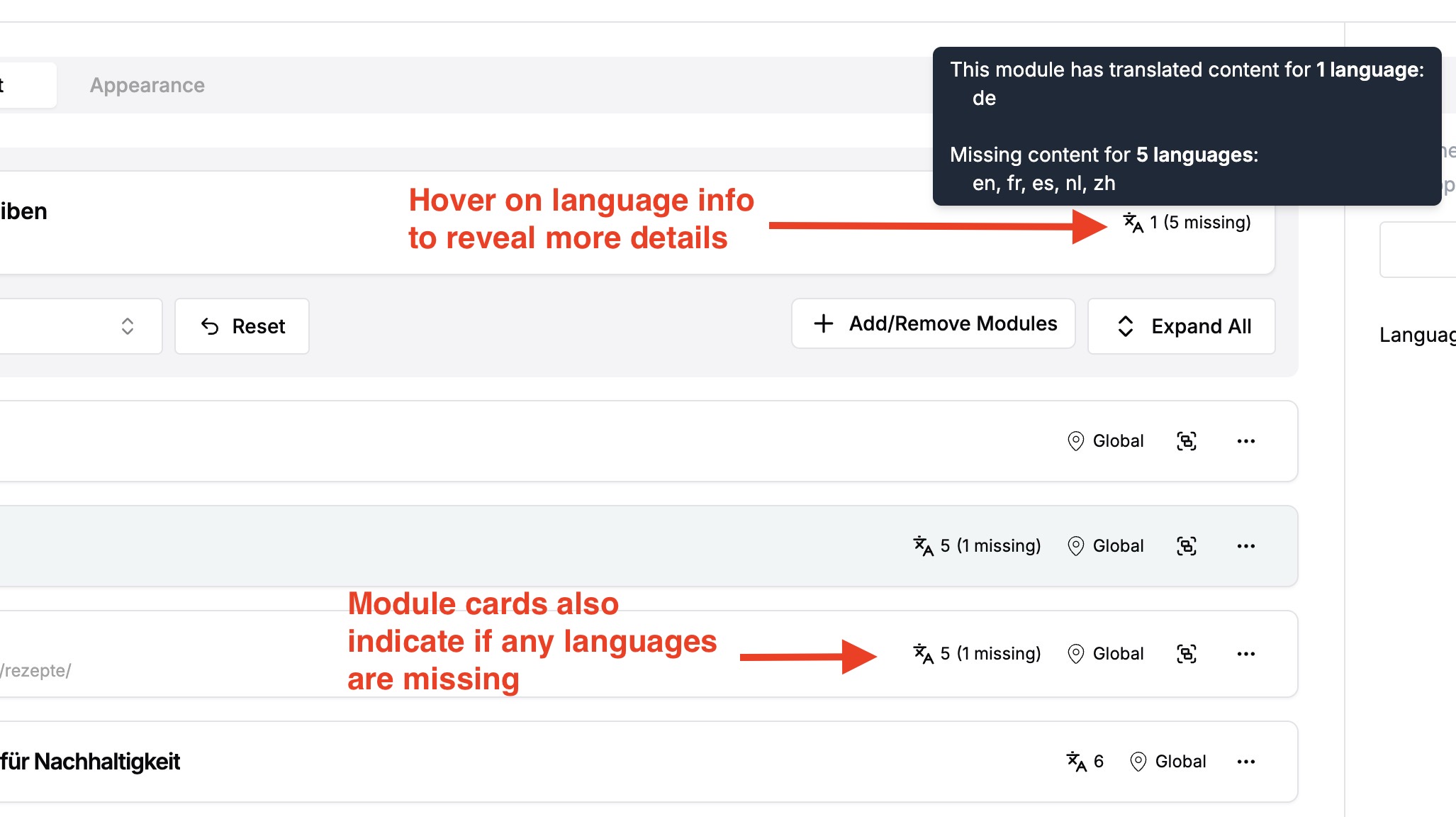
If you are on a Page (Product or Media), you can see language information in the “Content” tab…
On the “Master data” card at the very top
On each Module card below
If you hover over any language information, a tool tip will give you more details, e.g. which languages are still missing. See screenshot below:
If you open the “Master data” card, it reveals its language settings, allowing you to e.g. translate the Product Title and Product Details.
See screenshot below:
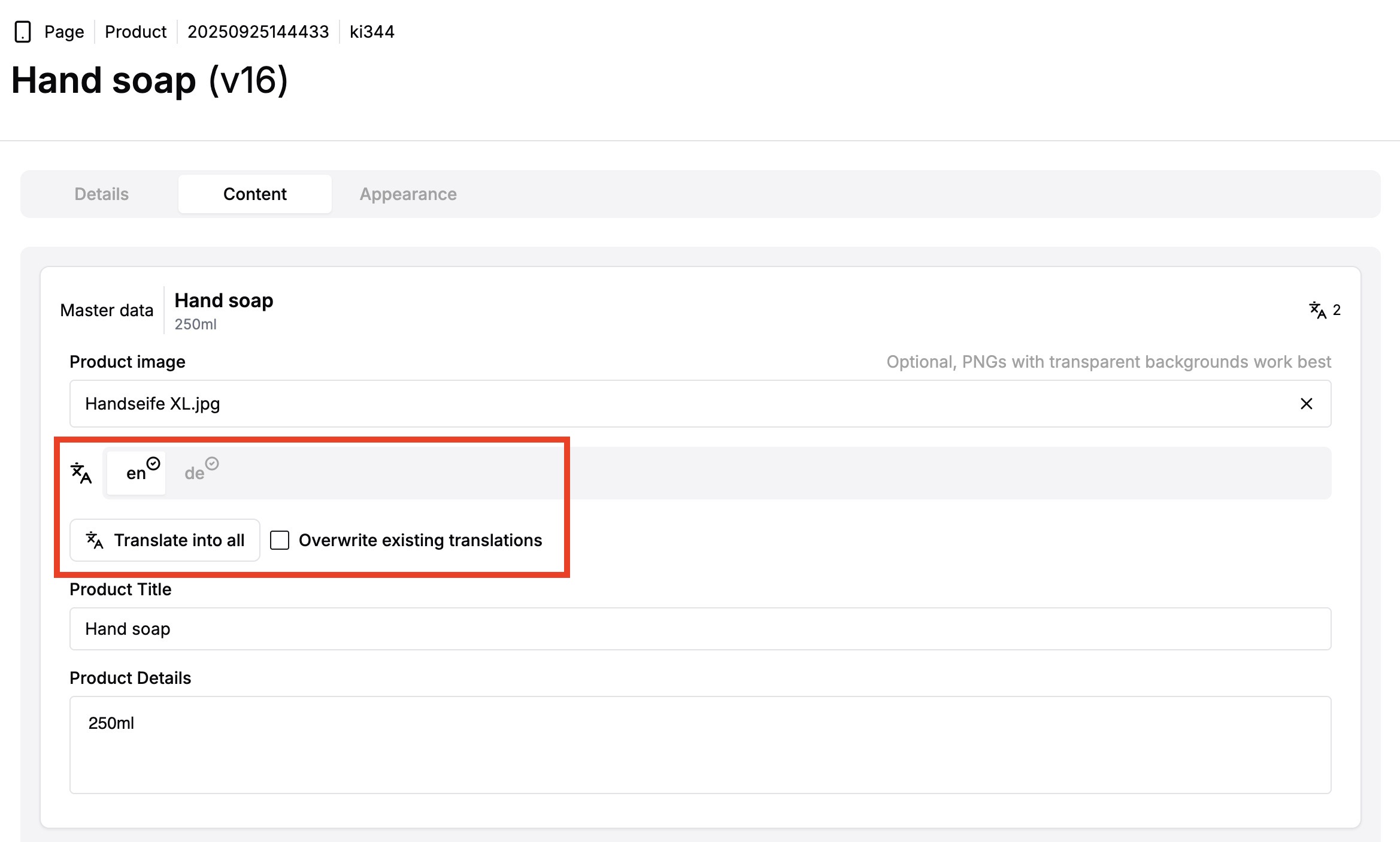
If you are on a Module, you can see language settings in the “Content” tab.
See screenshot below:
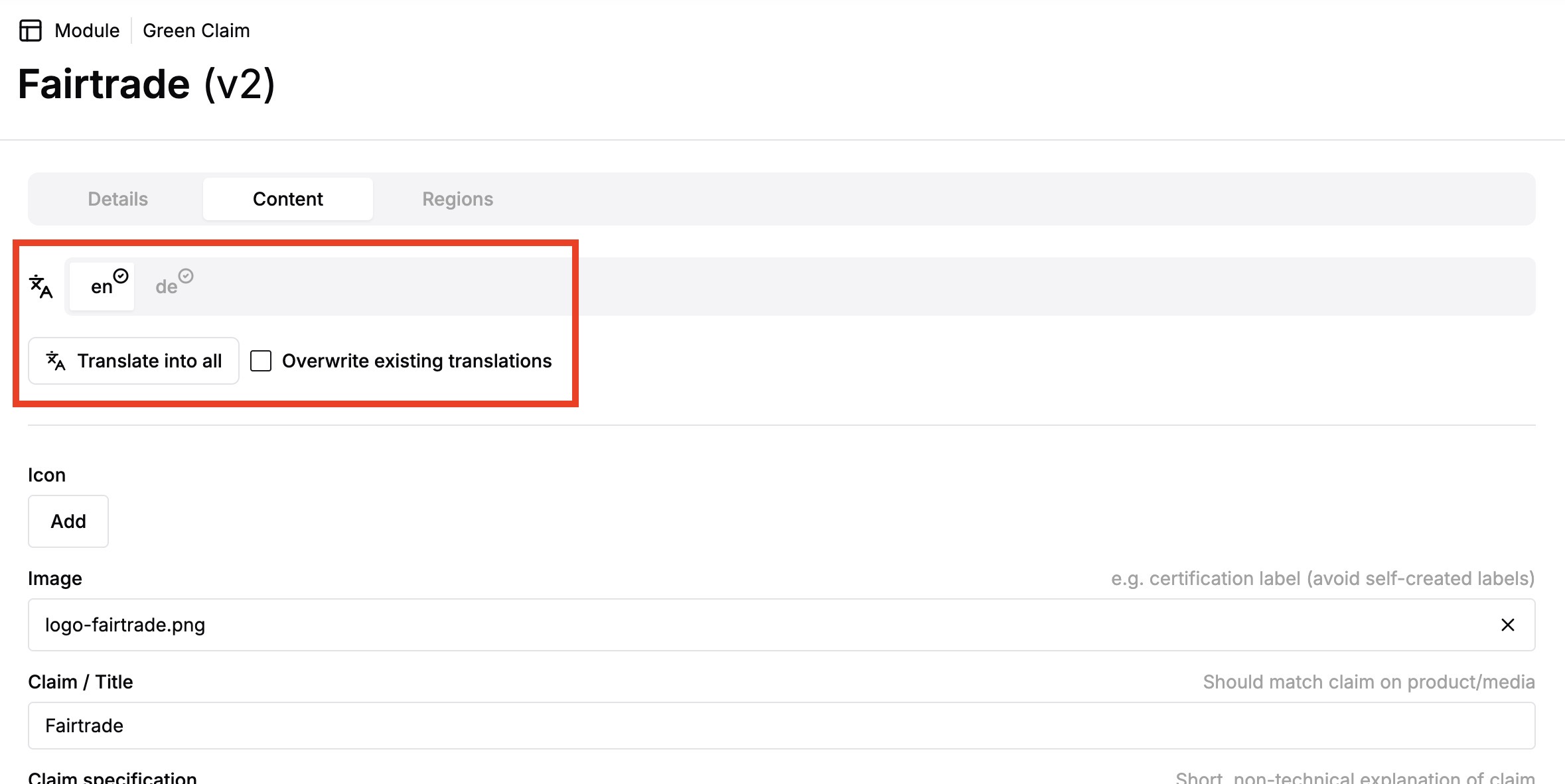
To preview language translations, select the desired language in the drop down list above the preview on the right of a Page or Module. See screenshot below: